Best AI Photo Editing Tools 2026
Best AI Photo Editing Tools in 2026 Compared for Beginners
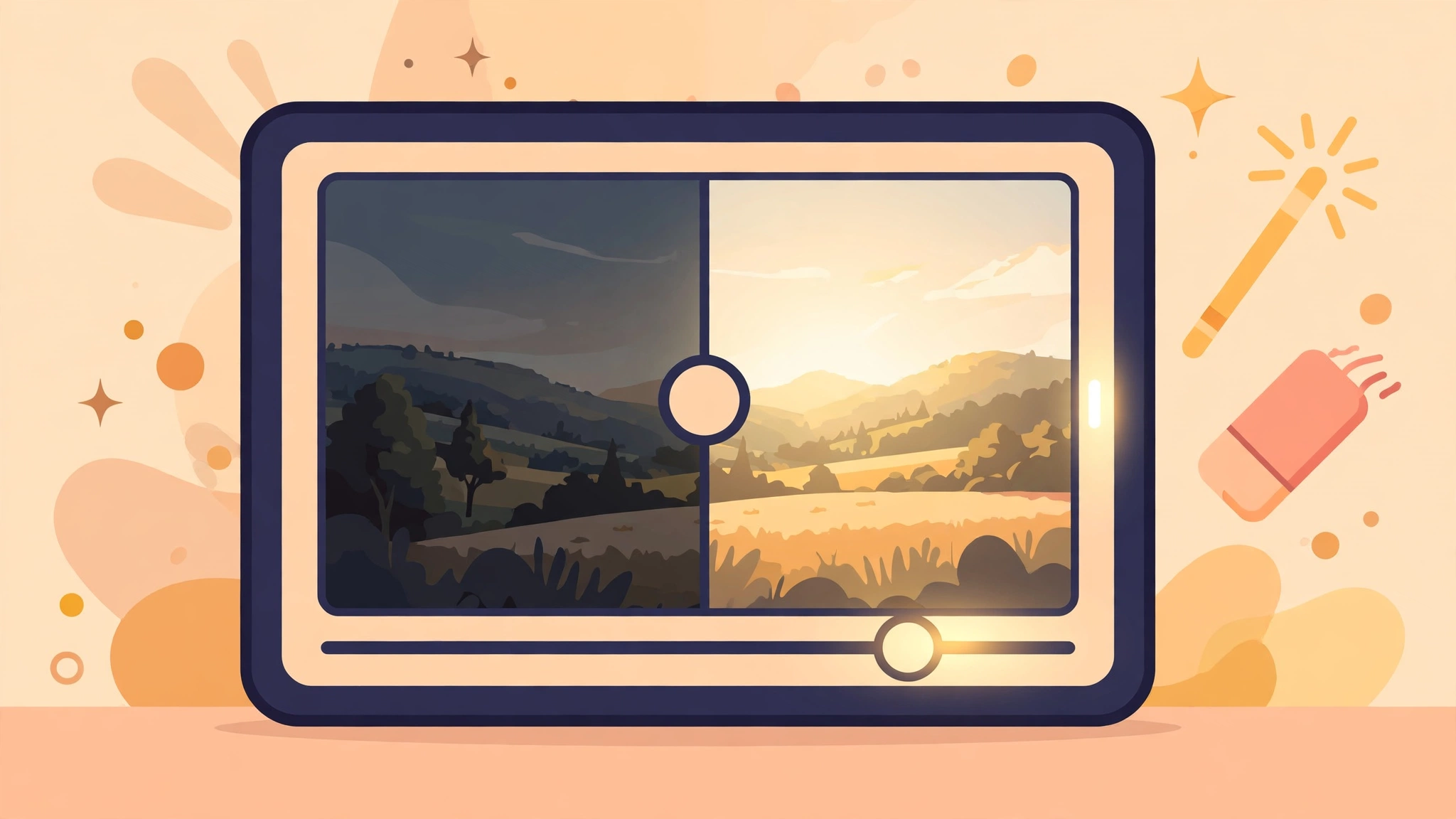
Almost everyone editing photos today is doing the same five jobs: brightening a dull shot, cutting a person or product out of its background, removing something that should not be there, sharpening a soft image, and resizing the result for wherever it will be posted. AI photo editing tools exist to do those jobs in one or two clicks instead of an afternoon of manual work — and for beginners, the difference between the tools is mostly about how much control you want after the AI has done its part.
Every tool below can be started for free at the time of writing. That does not mean everything in them is free: free plans typically limit exports, resolution, or how many AI actions you get, and the details change often. Use the descriptions here to choose what to try, then check the current free and paid terms on each official site before building a routine around a feature. More guides like this live in our AI Tools section on Stylish Namees.
What AI Editing Actually Does Well — and Where It Struggles
AI editors are genuinely strong at pattern jobs. Removing a background works because the tool has seen millions of edges between subject and background. Enhancing a flat photo works because “well-lit and balanced” is a pattern too. Erasing a tourist from the edge of your holiday photo, extending a background to fit a wider frame, or suggesting a sky replacement are all variations on the same skill: recognising what belongs in a picture.
They struggle where judgement is needed. An AI enhancer cannot know that the blur in your photo was artistic, or that the person in the background is actually the point of the picture. Over-processing is the most common beginner mistake — skin smoothed into plastic, skies pushed into colours no sky has ever been. The fix is simple: use the strength or amount slider most tools provide, stop before the effect becomes the subject, and compare with the original before exporting.
1. Canva — Easiest All-Rounder for Social Photos
Canva is the friendliest starting point if your edited photo is headed for a post, cover, thumbnail or presentation. Its editor includes AI background removal, image enhancement and generation features alongside templates and text tools, so the photo gets fixed and finished in the same place. For a beginner, finishing the job matters more than having the deepest editing engine.
Some of Canva’s AI features are limited or reserved for paid plans, and that split changes over time — check what your account offers when you open the editor. If your work is mostly social content, start here. It pairs naturally with the wider creator toolkit in our guide to the best AI tools for content creators in 2026, where Canva also appears on the design side.
2. Adobe Photoshop and Lightroom — The Professional Standard, Now with AI Inside
Adobe built the tools professionals have used for decades, and its AI features are now woven through them: Photoshop’s generative fill can extend a scene or remove large unwanted objects in a way older clone tools could not, while Lightroom’s AI denoise and masking rescue low-light photos that once would have been deleted. Selection tools that once took twenty careful minutes now take a click and a quick correction.
The honest trade-off is learning curve and commitment. Adobe’s apps are subscription software aimed at people who edit a lot, though free trials and Adobe Express give beginners a way in. If photography is becoming a serious hobby or paid work, this is the ceiling. If you edit three photos a month, it is more tool than you need.
3. Pixlr — Quick Online Edits Without Installing Anything
Pixlr has been the “open a browser tab and fix it” option for years, and its AI tools — background removal, object erasing, enhancement — follow the same quick-job philosophy. It suits the beginner who wants a result in two minutes: upload, click the relevant AI tool, adjust, download.
Pixlr offers a free tier with limits alongside paid options for more usage and features, and the current details are on its official site. Expect less fine control than the professional tools, and check exports at full size before using them anywhere important — free tiers in many editors restrict output resolution.
4. Photopea — Free, Browser-Based and Surprisingly Deep
Photopea looks and behaves like a traditional editor — layers, masks, selection tools — running entirely in your browser, and it handles the standard professional file formats. Its newer AI features sit alongside those manual controls rather than replacing them, which makes Photopea a good place to learn real editing skills while still getting AI help on the tedious selections.
It is free to use with advertising, with a premium option that removes ads and adds extras. For a student or a creator on a zero budget who wants to learn how editing actually works — the same skills that transfer to any professional tool later — Photopea is hard to beat. Keep your project files saved as you work, as with any browser-based tool.
How to Choose in Five Minutes
Match the tool to the habit, not to a ranking list. Mostly social posts and covers: Canva. Serious photography or client work in your future: Adobe, learned gradually. Occasional quick fixes with nothing to install: Pixlr. Learning real editing on no budget: Photopea. Many beginners end up with two — a quick tool for daily posts and a deeper one they grow into — and that is a perfectly good outcome.
One workflow tip works across all four: do AI steps in the right order. Crop first, then remove or fix the background, then enhance light and colour, then sharpen or upscale last. Doing it backwards means the enhancer polishes things you were about to delete, and the background tool inherits colours you were about to change. And keep your original file untouched — export a copy — because the edit you love today is the one you will want to redo next year. If you are editing photos as part of a bigger writing or study workflow, our guide to the best AI note-taking tools in 2026 shows where to keep the briefs, references and before-and-after notes organised, and our chatbot guide for work covers getting captions and descriptions drafted for the finished pictures.
A Word on Honesty in Edited Photos
AI editing makes it easy to change a photo beyond touching up. Removing a blemish is normal; removing a person, faking a product result, or presenting a heavily generated image as a real photograph crosses lines that platforms, clients and in some places advertising rules care about. When an edit changes what a viewer would believe about the scene, say so or do not make that edit for publication. Your audience’s trust is worth more than one polished picture.
Frequently Asked Questions
What is the best AI photo editor for a complete beginner?
Canva, for the same reason it leads our design picks: the AI fixes live inside a simple editor with templates, so you go from dull photo to finished post without learning a professional program first.
Are AI photo editing tools free?
All four tools here can be started free, but free plans have limits — on exports, resolution or specific AI features — and those limits change. Check the official site of the tool you choose for the current terms before relying on a feature for paid work.
Can AI really remove a background cleanly?
Usually, yes, including hair and product edges that used to take careful manual work. Very fine detail, transparent objects and backgrounds the same colour as the subject can still defeat it — zoom in and check the edges before exporting.
Will AI enhancement fix a badly blurred photo?
Only partly. Denoise and sharpening rescue soft or noisy photos noticeably, but a truly blurred or tiny image has information missing that no tool can invent honestly. Enhancement improves a decent photo; it does not reverse a ruined one.
Do I need to install software to edit photos with AI?
No. Pixlr and Photopea run in a browser, and Canva works in a browser or its apps. Adobe’s main tools are installed programs, which is one reason they suit people who edit heavily.
Conclusion
The best AI photo editing tool in 2026 is the one matched to your habit: Canva for finished social content, Adobe for depth and a professional future, Pixlr for two-minute fixes, Photopea for learning real editing free. Start with one, learn the order of operations, and keep your originals. You will find the companion guides for creators, chatbots and note-taking in AI Tools on Stylish Namees.